How to Unlock 90 FPS & Extreme FPS on Any Android Device (Without Root)
How to Unlock 90 FPS & Extreme FPS on Unsupported Devices (2026 Guide)
Are you stuck at 30 FPS or 60 FPS in PUBG Mobile, BGMI, Free Fire, or Call of Duty Mobile? Learn how to unlock 90 FPS and Extreme Frame Rates on unsupported Android smartphones without root, eliminate frame drops, and maintain smooth gameplay.
Resolution Changer by Integer IT
Downscale display resolution to 720p or custom 120FPS presets to remove GPU bottlenecks and unlock true high frame rate gaming.
📚 Related Gaming & Display Guides:
Why Is 90 FPS Locked on Many Android Devices?
Millions of Android phones boast capable mid-range or budget-flagship processors (such as Snapdragon 7s Gen 2, Dimensity 7200, Helio G99) and 90Hz or 120Hz displays. Yet, when you launch PUBG Mobile, BGMI, COD Mobile, or Free Fire, the graphics menu caps out at Ultra (40 FPS) or Extreme (60 FPS).
This happens because game developers implement whitelisted device profiles. If your specific phone model isn't on Tencent's or Krafton's official partnership whitelist, the game artificially throttles your settings—even if your hardware is fully capable of pushing 90 frames per second.
Fortunately, by applying smart hardware scaling and display unlocking techniques, you can force stable 90 FPS & Extreme FPS without voiding your warranty or rooting your phone!
Step 1: Force High Refresh Rate (90Hz / 120Hz)
To experience true 90 FPS, your screen must physically refresh at 90Hz or 120Hz. If your Android system automatically drops to 60Hz when games open (a common power-saving tactic on Xiaomi, Samsung, and Realme phones), you will stay locked at 60 FPS.
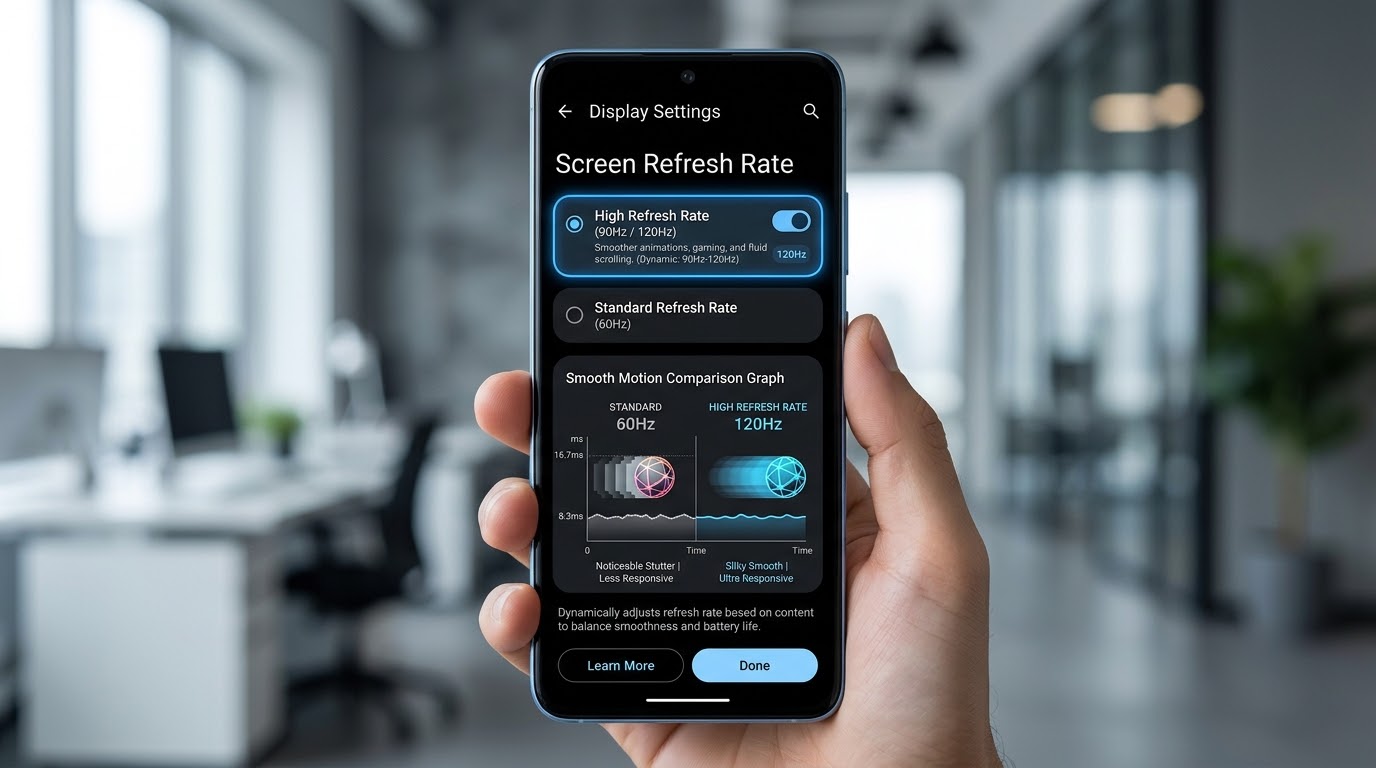
Figure 1: Enabling High Refresh Rate (90Hz / 120Hz) in Android Display Settings
- Go to your phone's Settings > Display.
- Tap Screen Refresh Rate (or Motion Smoothness).
- Change the setting from Standard (60Hz) or Adaptive to High (90Hz / 120Hz).
- Pro Tip for Xiaomi/Poco users: Clear data of the Battery and Performance system app (Settings > Apps > Manage Apps > Battery and Performance > Clear all data). This removes MIUI's aggressive 60Hz thermal lock!
Step 2: Dynamic Resolution Scaling (The 90 FPS Secret)
Why do flagship gaming phones hit steady 90 FPS and 120 FPS without breaking a sweat? They render at smart resolutions.
When your phone runs at its native 1080p (FHD+) or 1440p (QHD+), the GPU has to compute over 2.5 to 4 million pixels sixty to ninety times every second! By slightly downscaling your rendering resolution to 720×1600 (or 720×1430), the GPU load drops by more than 50%:

Figure 2: GPU Load Reduction via Resolution Scaling — Unlocking Consistent 90 FPS
How to Apply the 120 FPS Preset in Resolution Changer:
- Install Resolution Changer by Integer IT from Google Play.
- Ensure one-time ADB permission is granted (check our ADB grant guide).
- Open the app and select the built-in 120FPS (720×1430 • 208 DPI) or custom 720×1600 • 300 DPI preset.
- Tap Apply this Preset.
- Launch your game—observe the instant leap in responsiveness, reduced heating, and rock-solid framerate!
Step 3: Unlocking 90 FPS in PUBG Mobile, BGMI & CODM
To tell the game engine to render at 90 FPS instead of staying capped at 60 FPS, configure the following in-game graphics settings:
| Setting Parameter | Recommended Value | Why It Matters |
|---|---|---|
| Graphics Quality | Smooth | Eliminates heavy volumetric shadows and complex shaders for highest framerate. |
| Frame Rate | 90 FPS / Extreme | Directly instructs game engine to output maximum target frames. |
| Anti-Aliasing | Disabled (Close) | Saves up to 15% GPU overhead and avoids micro-stutters during close-range fights. |
| Auto-Adjust Graphics | Disabled | Prevents the game from dynamically throttling your FPS during intense battles. |
Step 4: Android Developer Options Tweaks for Gamers
Unlock hidden Android OS performance flags by toggling these settings in Settings > Developer Options:
- Graphics Driver Preferences: Search for your game (e.g. PUBG Mobile) and switch from Default to System Graphics Driver. This bypasses generic Android graphics wrappers and delivers raw GPU performance.
- Force 4x MSAA: Ensure this is turned OFF! Forcing MSAA severely taxes mid-range GPUs and ruins 90 FPS stability.
- Disable HW Overlays: Turn this ON. Forcing the GPU for screen compositing frees CPU cycles for game physics and hit registration.
- Background Process Limit: Set to Standard limit or At most 2 processes to stop background apps (Instagram, WhatsApp) from stealing RAM and CPU threads.
Frequently Asked Questions (FAQs)
❓ Can my 60Hz phone display 90 FPS?
A 60Hz display can physically refresh up to 60 times per second. However, running games at 90 FPS or with lower input latency still gives significantly lower input lag and faster touch response times, even on 60Hz screens!
❓ Will unlocking 90 FPS damage my battery or cause overheating?
By pairing high refresh rate with Resolution Changer downscaling (720p), you actually reduce the GPU workload. Most users report their phones run cooler on 720p/90FPS than on 1080p/60FPS!
❓ Is this safe and ban-free?
Yes, 100%. This guide uses official Android display APIs, Android system settings, and resolution scaling. No game files, APKs, or memory scripts are modified, meaning zero risk of game bans.
Experience True 90 FPS Gaming Today!
Download Resolution Changer from Google Play and unlock ultra-smooth 90 FPS / 120 FPS gaming and custom aspect ratios without root.

Comments
Post a Comment