How to Change Screen Resolution on Android Without Root (2026 Ultimate Guide)
How to Change Screen Resolution on Android Without Root (2026 Guide)
Learn how to customize your Android display resolution, unlock true iPad View for PUBG Mobile & BGMI, achieve smooth 90 FPS/120 FPS gaming, scale screen DPI, and save battery life on any Android device—safely and without root access.
Resolution Changer by Integer IT
The most powerful, lightweight, and modern screen resolution & density switcher with built-in iPad View presets and Quick Settings tiles.
🔗 Need Help With ADB Permission Setup?
If you haven't enabled USB debugging or granted the required permission yet, check out our companion step-by-step tutorial: How to Grant ADB Permissions to Resolution Changer via PC (Full Guide).
Why Change Your Android Display Resolution?
Modern Android smartphones are equipped with high-resolution displays ranging from Full HD+ (1080×2400) to Quad HD+ (1440×3200). While high pixel counts make text and photos look crisp, rendering millions of pixels places an immense computational burden on your device's Graphical Processing Unit (GPU) and battery.
By learning how to change screen resolution on Android, you can customize your device for specific needs:
Stable 90 FPS & 120 FPS Gaming
Lowering your resolution (e.g. from 1440p or 1080p to 720p) cuts the GPU workload in half. This prevents thermal throttling, removes frame drops, and delivers butter-smooth gameplay in PUBG Mobile, BGMI, Free Fire, and COD Mobile.
True iPad View (4:3 Aspect Ratio)
Battle royale games on iPads have an unfair competitive advantage due to a wider horizontal Field of View (FoV). Resolution Changer allows Android gamers to emulate true iPad 4:3 screen ratios without stretching or distortion.
Extended Battery Life
Driving fewer pixels drastically reduces hardware power consumption. Users report up to 25% to 35% longer screen-on time (SOT) when running lower resolution profiles on high-end AMOLED devices.
Custom DPI & Screen Density
Adjust UI scaling to fit more apps, emails, and data on your screen. Transform your phone into a tablet-like productivity machine with customizable Dots Per Inch (DPI) values.
Step 1: Grant One-Time ADB Permission (No Root)
Unlike old Android customization methods that required risky rooting, you can safely modify display properties through Android's official ADB framework. You only need to run this command once:
- Enable Developer Options by going to Settings > About Phone and tapping Build Number 7 times.
- Open Developer Options and toggle ON USB Debugging.
- Connect your phone to your computer via USB cable.
- Open your terminal or Command Prompt (CMD) in your ADB folder and run:
adb shell pm grant com.integer.it.resolutionchanger android.permission.WRITE_SECURE_SETTINGS
adb shell pm grant com.integer.it.resolutionchanger android.permission.DUMP
👉 For comprehensive troubleshooting with device drivers, Xiaomi MIUI/HyperOS security settings, and Realme permission monitoring, refer to our In-Depth ADB Grant Tutorial.
Step 2: Exploring the Resolution Changer Dashboard
After granting the permission, launch the Resolution Changer app. The clean and organized interface puts all critical display data right at your fingertips:
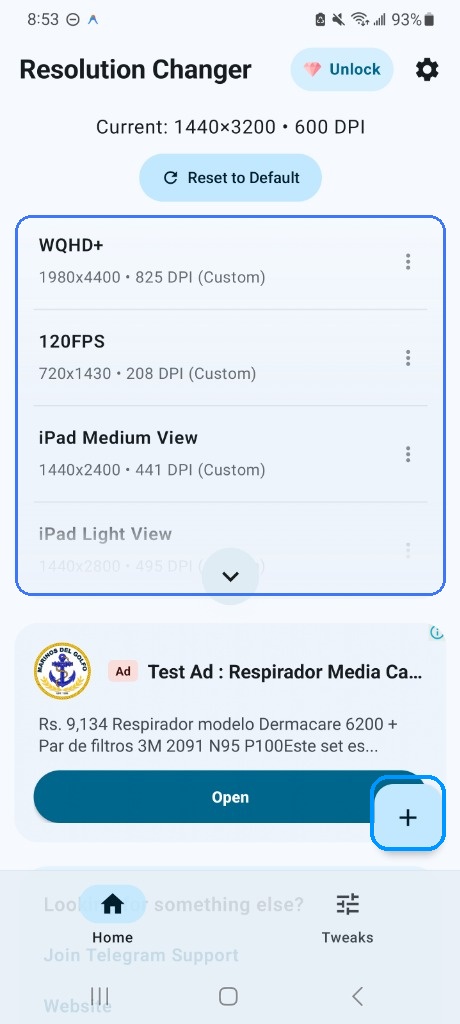
Figure 1: Main Dashboard highlighting Current Resolution and Built-in Presets
- Real-Time Display Metrics: The top bar displays your active resolution and density (e.g.
1440×3200 • 600 DPI). - Instant Reset to Default: An emergency safety button that instantly resets your screen resolution back to factory default with a single tap.
- Pre-Engineered Presets: Instant switching between WQHD+ (Max clarity), 120FPS Gaming (720x1430), iPad Medium View, and iPad Light View.
- Custom Preset Creator: The highlighted blue floating '+' button in the bottom right corner lets you configure custom resolutions for any game or app.
Step 3: Creating a Custom Resolution & DPI Preset
To set up an optimal resolution for your device or a specific gaming title, tap the + button to open the Create Preset dialogue:
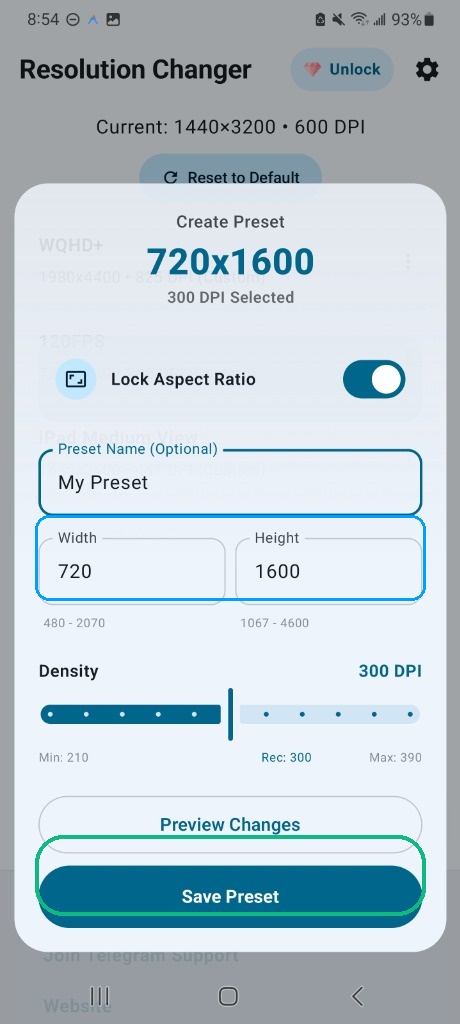
Figure 2: Creating a Custom Resolution with Aspect Ratio Lock & Density Slider
- Preset Name: Assign a clear name like "PUBG 120FPS 720p" or "iPad 4:3 View".
- Lock Aspect Ratio: Always keep this toggle ON unless you deliberately want a stretched screen. When ON, typing a custom Width automatically calculates the matching Height to maintain proper aspect proportions.
- Width & Height: Input your custom pixels (e.g.
720Width and1600Height). - Smart Density (DPI) Slider: Setting the wrong DPI on Android can break icons or keyboards. Resolution Changer features a smart indicator (e.g.
Rec: 300 DPI) that highlights the mathematically balanced density for your chosen resolution! - Tap Preview Changes to see how it looks, then tap Save Preset.
Step 4: Applying Presets & Quick Settings Tile
Once saved, applying your resolution takes less than two seconds:
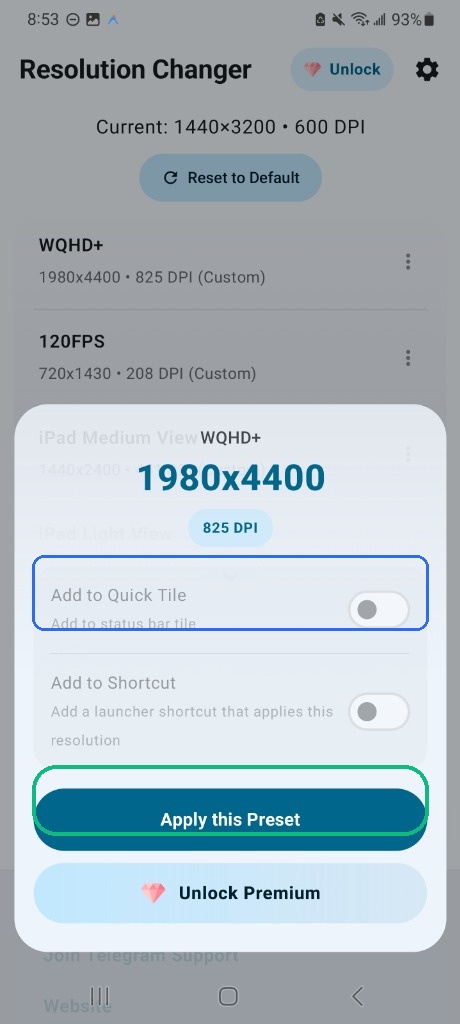
Figure 3: 1-Tap Apply and Status Bar Quick Settings Tile Integration
- Apply this Preset: Click this button to switch your active display resolution instantly.
- Add to Quick Tile: Toggle this ON to add a dedicated button to your Android notification shade. This enables switching between normal mode and gaming resolution with a single swipe, without ever opening the app!
- Add to Shortcut: Creates a dedicated 1-click home screen icon to launch specific resolutions directly.
Best Resolution Configurations for Android Gaming
Here are the tested, high-performance resolution and DPI presets recommended for popular competitive titles:
| Target Profile | Resolution (Width x Height) | DPI (Density) | Ideal For |
|---|---|---|---|
| 120 FPS Extreme Gaming | 720 × 1600 (or 720 × 1430) |
260 – 300 DPI | PUBG / BGMI 90-120 FPS, Free Fire, COD Mobile, Genshin Impact. |
| iPad View (Wide FoV 4:3) | 1440 × 1920 (or 1080 × 1440) |
360 – 420 DPI | Ultra-wide character view and wider peripheral vision in Battle Royale games. |
| Maximum Battery Saver | 720 × 1520 |
240 – 280 DPI | Long trips, outdoor navigation, and low-power standby. |
| Desktop / Tablet Mode | 1080 × 2400 |
320 – 360 DPI | Multitasking, split-screen work, web browsing, and reading documents. |
Device-Specific Tips: Samsung, Xiaomi, Realme, OnePlus
📱 Samsung Galaxy (One UI)
Samsung's One UI natively supports display adjustments, but limits them to presets (HD+, FHD+, WQHD+). With Resolution Changer, you can unlock custom granular resolutions (e.g. 720p with 120Hz high refresh rate) that Samsung hides by default!
📱 Xiaomi / Redmi / POCO (MIUI & HyperOS)
Xiaomi devices have extra security layers. In addition to USB Debugging, you MUST enable "USB Debugging (Security settings)" in Developer Options. This requires a Mi account login and allows ADB permission commands to write secure display settings.
📱 Realme / Oppo / OnePlus (ColorOS & OxygenOS)
On newer ColorOS builds, look for "Disable Permission Monitoring" inside Developer Options and toggle it ON so ADB settings persist smoothly across device reboots.
Frequently Asked Questions (FAQs)
❓ Does changing screen resolution void my phone's warranty?
No. Changing resolution via ADB uses Android's native Window Manager API (wm size and wm density). It does not unlock your bootloader or root your device, keeping your manufacturer warranty 100% safe.
❓ What if I type an unsupported resolution and the screen goes black?
Resolution Changer features an automatic safety countdown timer. If you don't confirm the resolution within 10 seconds, it automatically reverts to your previous setting. In addition, you can restore stock resolution anytime via PC using the simple command: adb shell wm size reset && adb shell wm density reset.
❓ Will I get banned in PUBG Mobile or BGMI for using iPad View?
No! Resolution Changer modifies your Android operating system's hardware screen resolution, NOT the game's internal APK or OBB files. Because no game memory or code is tampered with, anti-cheat systems do not trigger bans.
❓ What is the difference between Resolution and DPI?
Resolution refers to the total number of physical pixels drawn on the screen (Width × Height). DPI (Dots Per Inch) determines how large or small interface elements (buttons, text, icons) appear on that resolution. Higher DPI makes icons larger; lower DPI fits more content onto the screen.
Download Resolution Changer Today!
Unlock peak gaming performance, true iPad View, customizable DPI, and battery savings without rooting your Android phone.

Comments
Post a Comment